

Build a skill
Create a skill, write its instructions, and add the content and tools it uses.
All the steps presented below can be autonomously handled through your AI agent (Claude Desktop) and executed for you. See Author with AI.
A skill is instructions plus what they rely on. This page covers all of it: the instructions, the reference, script and asset content, and the tools it connects to.
Create the skill
On Capabilities > Skills, click Add Skill. Under Create from scratch, type a name and click Continue. Skilder opens the skill editor. Click Edit and describe what the skill does in its Description.
Write the instructions
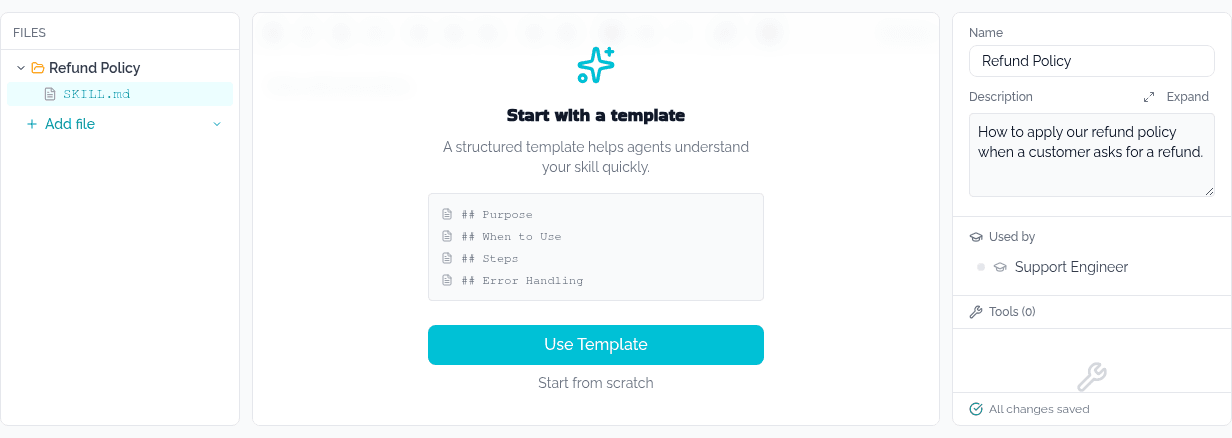
SKILL.md is selected by default. Use Use Template for a structured starting point (Purpose, When to Use, Steps, Error Handling), or Start from scratch. Changes autosave, and the toolbar shows Saved as you go.
Add content
Click Add file in the file tree and choose what to add.
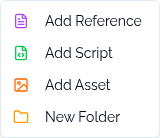
| Kind | Name and fields | Notes |
|---|---|---|
| Reference | Name, and a type: Markdown, plain text, JSON, YAML, TOML, XML or CSV | The agent reads it on demand. A Markdown reference can be switched between Versioned and Live (unversioned) in its settings panel. |
| Script | Name, and a language: Python, JavaScript, TypeScript or Bash | Opens in a code editor. Use Test Script in its settings panel to run it with CLI-style arguments, once a runtime is linked. A TypeScript script can import the script SDK to call tools and return a result. Any script can take files as arguments and return files: see Files in and out. |
| Asset | A file, dropped or browsed | A dropped text file is imported as a reference instead, automatically. |
Each item's settings panel carries a Delete action at the bottom.
Connect tools
Select the skill root to see its Tools section, and click Manage Tools. Tick the tools this skill needs, grouped by MCP server, then click Update.
If the server you need is not installed yet, click Add MCP Server from the same panel, or Configure MCP Servers if you have no servers at all.
Check it worked
The file tree lists what you added, and the Tools count on the skill reflects what you connected. The skill shows up on the Skills page, under Capabilities in the sidebar, and in the Used by list of every role that carries it.
Next
- Create a role, to attach this skill to a role.
- Publish and version, to make it available to agents.