

Test a role in Studio
Run a conversation against a role and see which skills and tools it used.
Studio is Skilder's built-in chat for building and testing roles. This walks through its Run mode: a real conversation against a published role, with a trace of every skill and tool it reached for.
Before you start
- The role is published. Studio's Run mode works with published roles, the way an outside agent would.
- Your workspace has an AI provider configured. See AI providers.
Open the role in Studio
On Roles, switch to List view with the toggle at the right of the toolbar. The org chart has no test button.
Find the role's row and click its flask icon, labeled Test <role> in Studio. This opens Studio in Run mode with the role selected. The icon is unavailable while the role is disabled.
You can also click Studio under Agents in the sidebar. It opens in Run mode.
Start a conversation
Type the kind of message an agent using this role would send, the one that should trigger the skill you want to check, and send it.
Read the trace
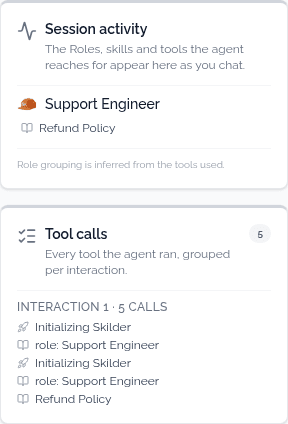
Each tool call appears inline in the reply as a chip you can open, and the panel on the right groups the same calls by role and skill.
Check it worked
Session activity lists the role and skill the conversation used. Tool calls counts every call the agent made, grouped per interaction. If a tool you expected is missing, the role did not reach for it: check the skill's instructions or its connected tools.
Next
- Test a script, to check one script in isolation.
- Build a skill, to fix what you find.