

Read Activity
Follow skills, sessions, tool calls and connected clients in Activity.
Open Activity and you see what your roles actually did: which sessions ran, which tools got called, and what failed.
Before you start
- At least one role has run once. An empty workspace shows an empty Activity.
Open Activity
Select Activity under Monitoring in the sidebar. The Stats tab opens first: your top skills by call volume, total calls and success rate for the selected window, and workspace counts for roles, skills, tools and MCP servers.
Rank every skill
Select Skills to rank every skill over 7d, 30d or All time. Choose Calls to see which skills get used most, or Unpriced uses to see only the skills used without a value per use, biggest gap first. Filter by Role to narrow the ranking, and click Load more below the list to see the next 50 skills.
Under Unpriced uses, the uses of a skill deleted since stay counted, in one Unattributed row. It adds up with the other rows to the unpriced count under Pricing coverage on Value, and it has no skill to open.
See all skills, under the top skills on Stats, opens this ranking on the same timeframe. On Value, Which skills? beside the unpriced count under Pricing coverage opens the unpriced ranking, and so does See which skills need a value per use when fewer than half of your uses are priced. Click a skill to open it, then set its value per use in its Value section.
Follow a session's story
Select Sessions to see agent work grouped by task, one row per episode. Click a row to open its timeline: every call in order, nested under the call that triggered it.
A session starts when a client calls init_skilder and carries its session id on every call that follows. A call made without a session id never joins one. It still shows up in Call Log.
Look at every call
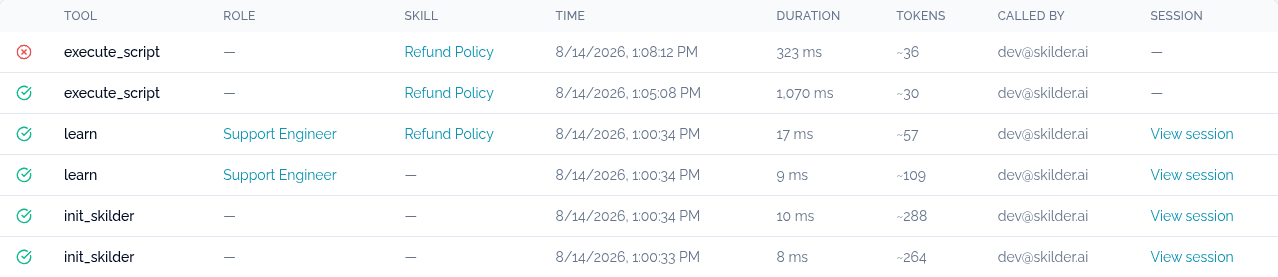
Select Call Log for a flat, filterable list of every tool invocation: status, role, skill, duration, estimated tokens, and who called it. Filter by status, tool, runtime or time range to narrow in on a problem, then click a row to inspect its full input and output.
Read the value your skills returned
Select Value to see what your skill uses were worth over 7d, 30d or All time. Total value adds up the value per use of every priced use. Pricing coverage beside it splits your uses into priced and unpriced, and turns amber when fewer than half are priced: unpriced uses count as zero, so the total reads low.
Below them, Value over time charts the total per day, and Top skills by value ranks the skills behind it. Click a skill to open it.
Check connected clients
Select Clients to see which MCP clients have connected to your workspace, with the MCP protocol version, who connected it, and when.
Check it worked
A row with a red status icon in Sessions or Call Log is a failed call. Click it to read the error in its input and output.
Admin: workspace-wide activity
A member only sees their own skills, sessions and calls. An admin sees everyone's, can filter Skills by User and Value by person, and gets the admin-only Runtimes tab. Session tracking is a workspace setting: an admin can turn it off, and calls still appear in Call Log with no sessions recorded.
On Value, an admin also gets Top users by value. Click a row to filter every figure on the tab to that person, and click it again or Show all users to clear the filter. Find a person searches everyone in the ranking, up to 50 people.
While a person is selected, a scorecard replaces Total value and Pricing coverage. It shows their share of workspace value, their rank, and their value per priced use against the workspace's. Value over time draws their trend over the workspace trend in gray, and each skill in Top skills by value carries a gray workspace bar behind theirs. The person stays selected when you switch to Skills.
Activity names each person by their display name, or by their full email address when they have none.
Next
- Ask your agent about activity, to read these same records without opening the app.
- Read the dependency map, to see how roles, skills and tools connect.
- Act on insights, to turn what you found into a fix.